

Browsing and Discovering Events
Browse & Discover
Browsing & Discovering Awareness Days
Learn how to search, filter, and explore over 1,000 awareness days, health observances, and themed events using the planner’s browsing tools.
Searching for events
The search bar at the top of the toolbar lets you find events by keyword. Search is instant — results update as you type.
Search matches against event titles. For example, searching for “mental health” will show World Mental Health Day, Mental Health Awareness Week, and similar events.
Using filters
Three dropdown filters sit alongside the search bar to help you narrow results:
Category filter
Awareness days are organised into 15 topic categories:
- Animals & Wildlife
- Arts, Culture & Heritage
- Business & Finance
- Cancer Awareness
- Community & Inclusion
- Education & Youth
- Environment & Sustainability
- Food & Nutrition
- Fun & Quirky
- Global & National Days
- Health & Wellbeing
- Safety & Prevention
- Science & Technology
- Seasonal Celebrations
- Travel
Select a category from the dropdown to show only events in that topic. This is particularly useful for content planning around a specific theme.
Region filter
Filter by geographic relevance:
- International — observed worldwide
- United Kingdom — UK-specific events
- United States — US-specific events
- Australia — Australian events
Month filter
Select a specific month to see all events occurring in that month. This is useful for planning content a month or quarter in advance.
Combining filters
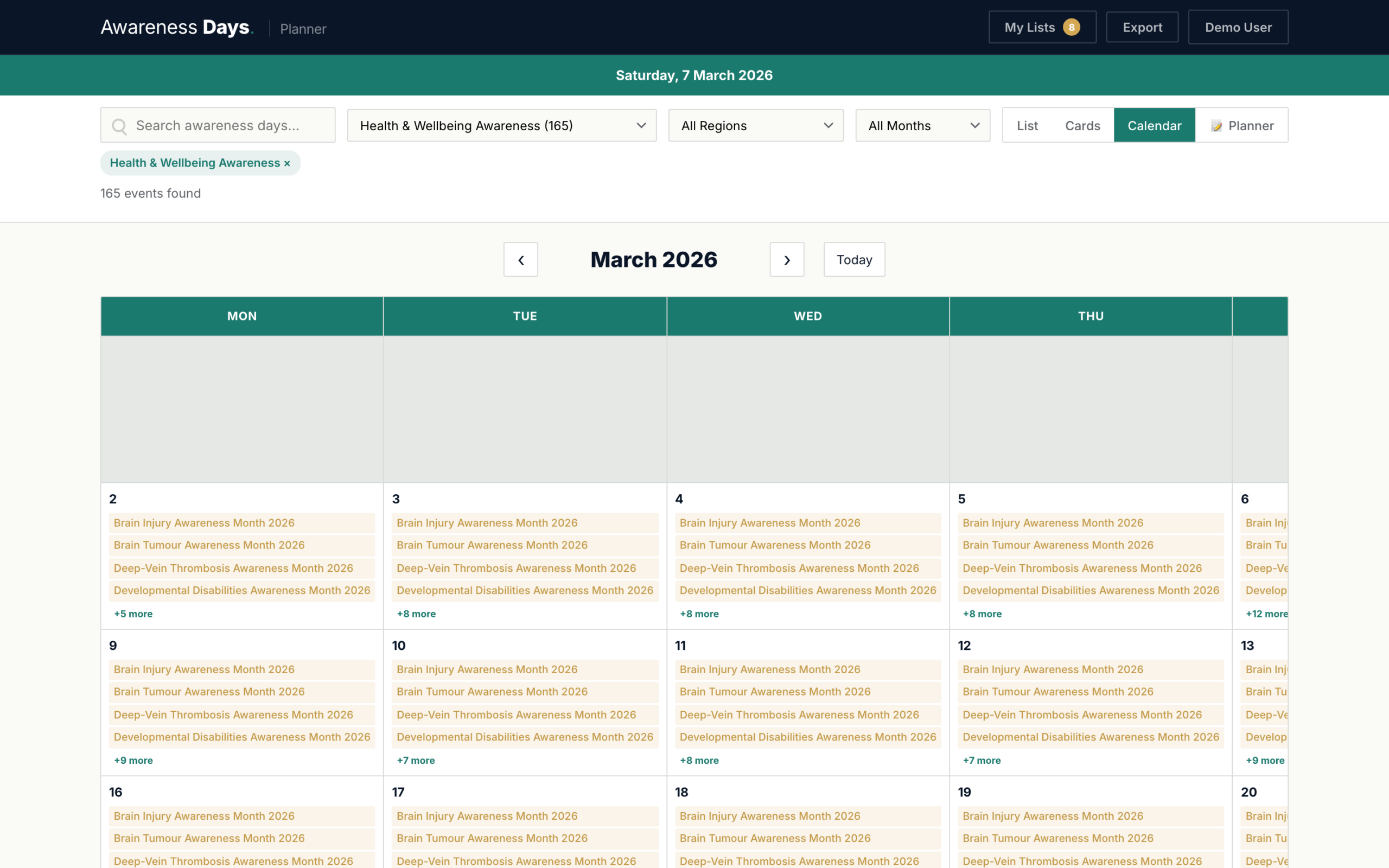
Filters work together. For example, you could filter by “Health & Wellbeing” + “United Kingdom” + “October” to find UK health awareness events in October.
Active filters appear as teal pills below the toolbar. Click any pill to remove that filter.
List view
List view shows events in a compact table format with columns for date, event title, and categories. This is the most information-dense view and is ideal for quickly scanning through many events.
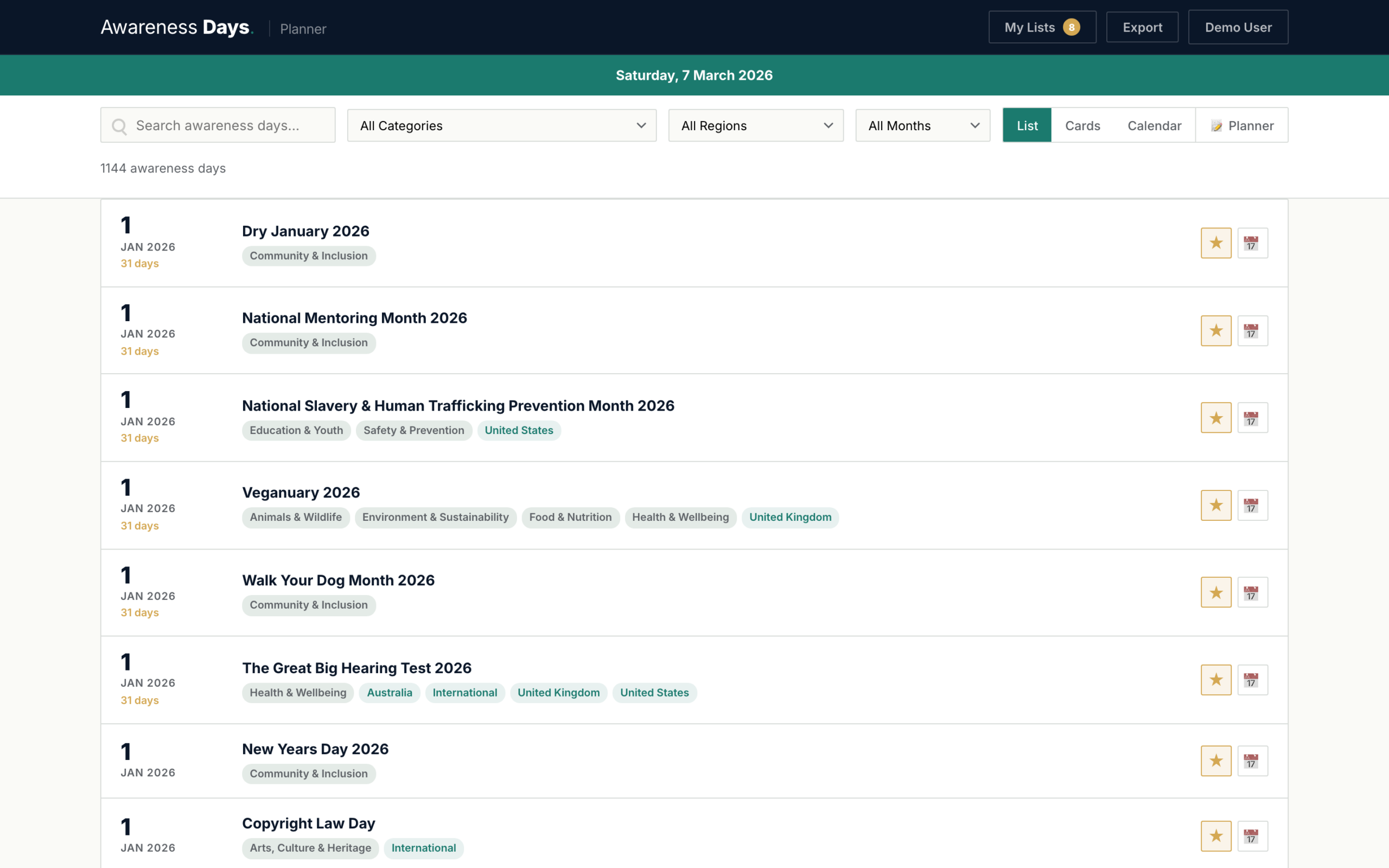
Each row shows:
- The event date (or date range for multi-day events)
- Event title — click to open the detail modal
- Category badges with colour coding
- A star icon to save the event to your calendar
Cards view
Cards view displays events in a visual grid with images, making it easier to browse and discover events you might not have searched for.
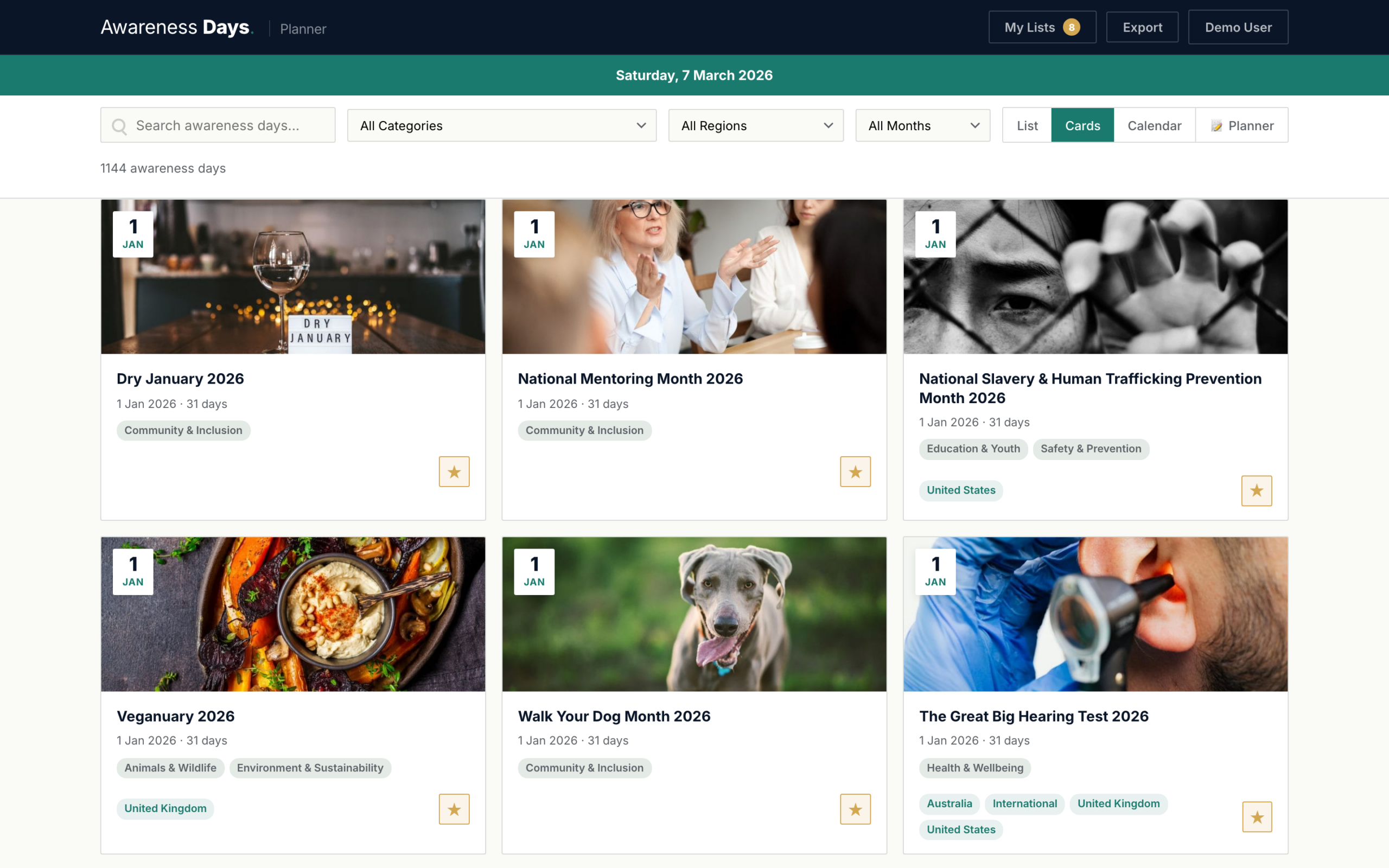
Each card includes:
- Event image (where available)
- Event title and date
- A brief description
- Category and region badges
- A star icon to save the event
Calendar view
Calendar view shows events on a monthly grid, giving you a clear picture of what’s coming up and where the busy periods are.
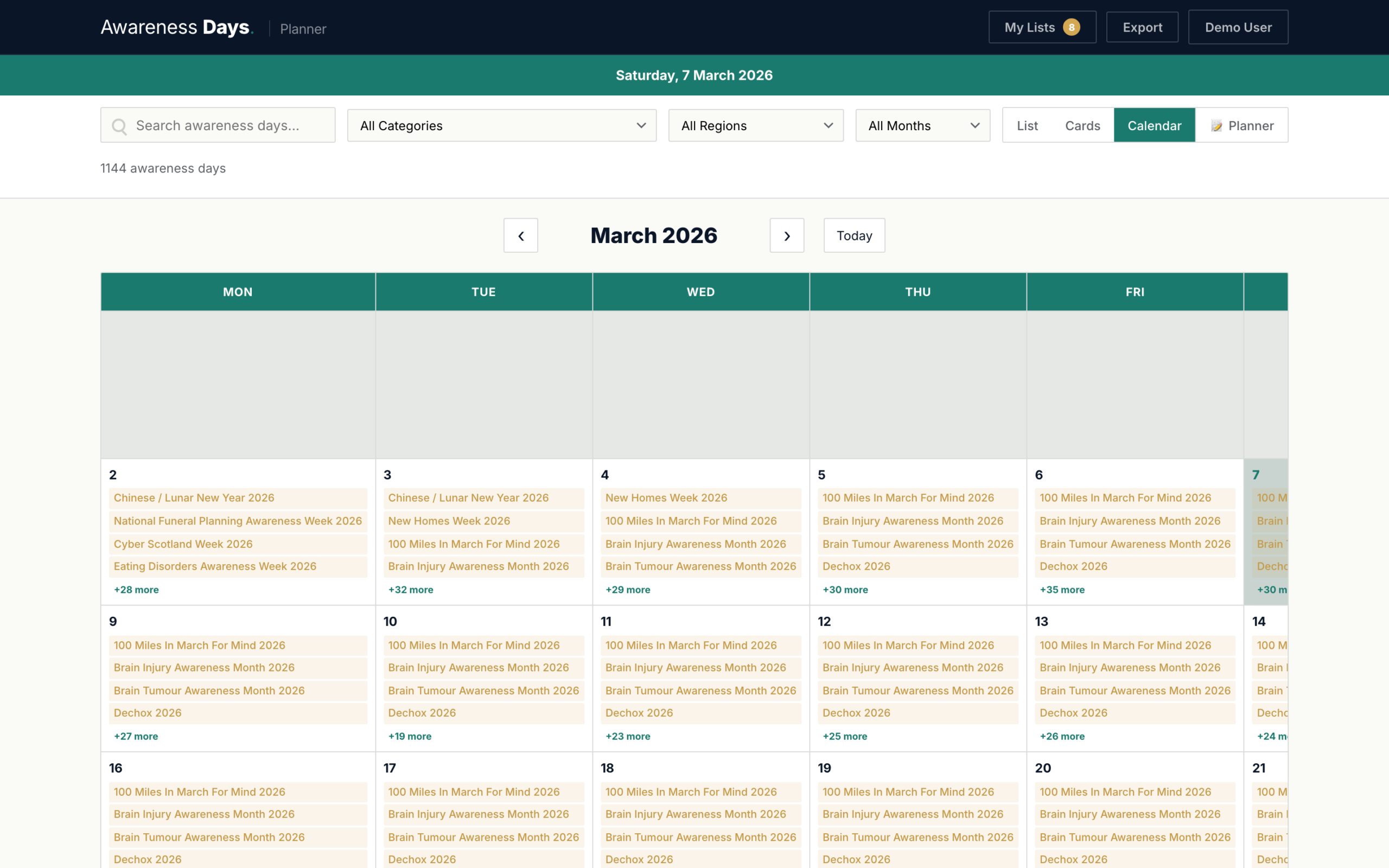
In calendar view you can:
- Navigate months using the left/right arrows or the “Today” button
- Click a date to see all events on that day in a popup
- See multi-day events spanning across multiple dates
- Spot busy periods at a glance — dates with more events are visually fuller
Today’s date is highlighted with a distinct background colour so you always know where you are in the year.
Event details
Click any event — in any view — to open its detail modal. The modal shows:
- Event image (full width at the top)
- Title and date (with multi-day duration where applicable)
- Description — a summary of what the day is about, who runs it, and how to participate
- Categories — colour-coded topic and region badges
- External link — to the official event page on awarenessdays.com
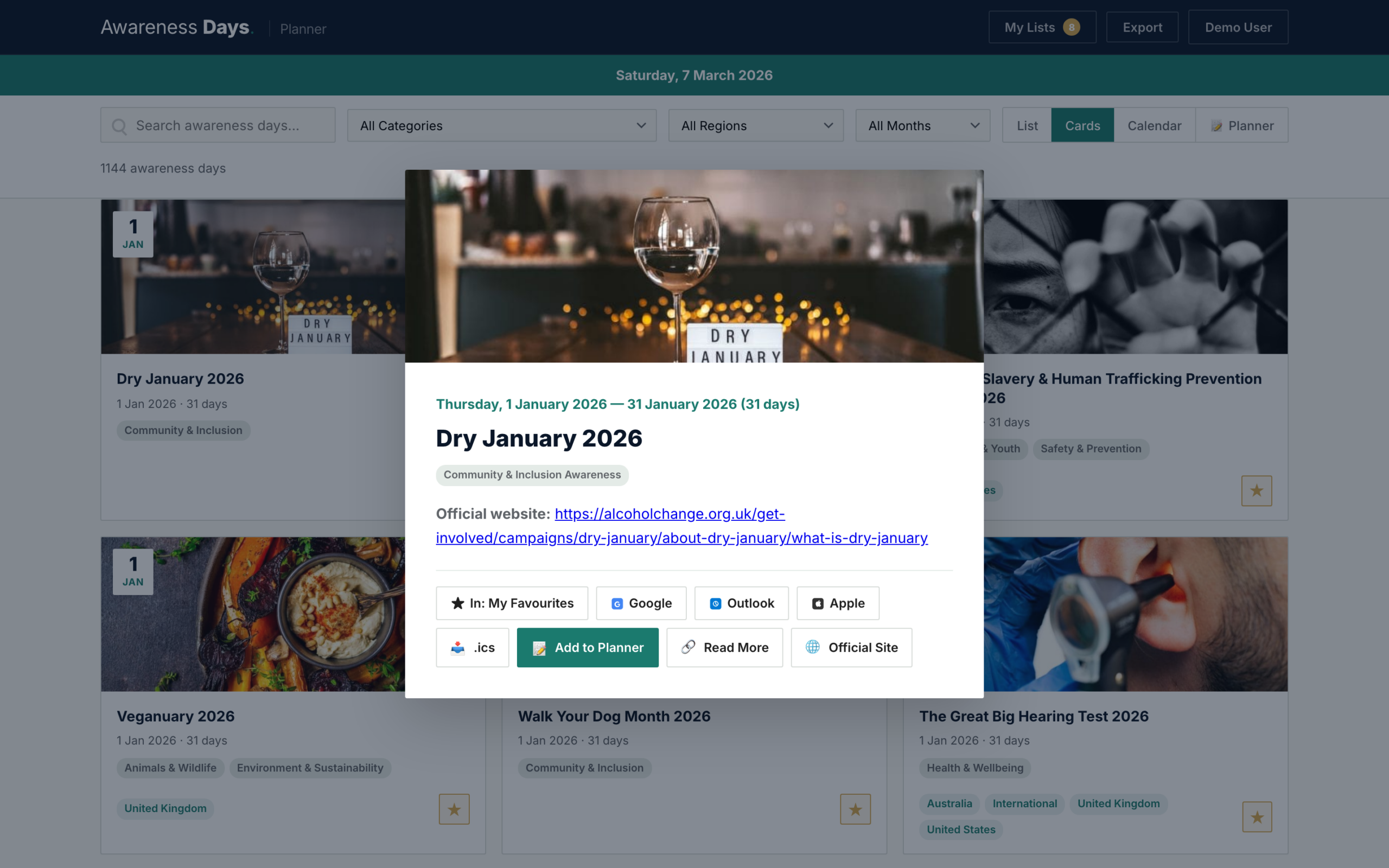
From the detail modal you can:
- Save to a calendar — click the star to add it to your active list, or use the list picker to add to multiple calendars
- Add to external calendar — Google Calendar, Outlook, or Apple Calendar with one click
- Add to planner — create a content item linked to this event
Today bar
The teal banner below the header shows awareness days happening today. It appears automatically and updates daily. Click any event name in the bar to open its details.
The today bar is visible in all views except Planner mode, where it’s hidden to give you more workspace.
Pagination
Events are shown 25 per page. Navigation buttons appear at the bottom of the event list in List and Cards views. Calendar view shows all events for the visible month.
Filters and search are applied before pagination, so the result count at the top always reflects your current filters.