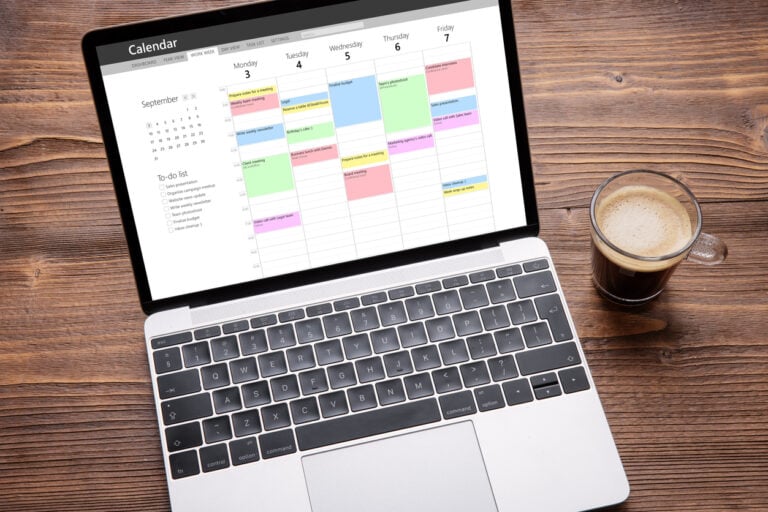

Exporting Your Calendar
Export
Exporting Your Awareness Day Calendar
Get your saved awareness days into Google Calendar, Outlook, Apple Calendar, or download them as CSV, ICS, and JSON files for your workflow.
Adding single events to your calendar
You can add any awareness day to your calendar app directly from the event detail modal. Open an event and use the calendar dropdown to choose your app:
- Google Calendar — opens Google Calendar with the event pre-filled
- Outlook — opens Outlook Calendar with the event pre-filled
- Apple Calendar — downloads an .ics file that opens in Apple Calendar
- Download .ics — saves a standard calendar file you can import into any calendar app
All events are exported as all-day events with the awareness day title, a link back to the event page on Awareness Days, and relevant category information.
Adding to Google Calendar
- Open the event you want to add by clicking it in any view.
- Click the calendar dropdown in the event modal (the calendar icon with an arrow).
- Select “Google Calendar” from the dropdown options.
- A new tab opens with Google Calendar’s event creation form, pre-filled with the awareness day details.
- Click “Save” in Google Calendar to add it to your calendar.
Adding to Outlook
- Open the event and click the calendar dropdown.
- Select “Outlook” from the options.
- Outlook.com opens in a new tab with the event details pre-filled.
- Click “Save” to add the event to your Outlook calendar.
This works with Outlook.com (Microsoft 365). For the Outlook desktop app, use the .ics download option instead.
Adding to Apple Calendar
- Open the event and click the calendar dropdown.
- Select “Apple Calendar” or “Download .ics”.
- An .ics file downloads to your device.
- Open the file — macOS and iOS will offer to add it to Apple Calendar. Click “Add” to confirm.
Bulk export (entire calendar)
Rather than adding events one at a time, you can export an entire calendar list at once. This is available from two places:
From the header Export button
Click “Export” in the planner header to open the export modal. Choose your format (CSV, ICS, or JSON) and the export will include all events in your active calendar.
From the My Calendars panel
Open My Calendars, select the list you want to export, and use the export options at the bottom of the panel. You can also use the “Add all to Google Calendar” or “Add all to Outlook” shortcuts to send the entire list to your calendar app.
CSV export
CSV (Comma-Separated Values) files are ideal for spreadsheet tools like Excel, Google Sheets, and Numbers. The export includes:
- Event ID
- Title
- Start date and end date
- Categories (topic and region)
- URL to the event page
CSV export is useful for building custom reports, importing into project management tools, or sharing event lists with team members who don’t use Awareness Planner.
ICS export
ICS (iCalendar) files are the universal standard for calendar data. Any calendar app can import an .ics file, including:
- Google Calendar (import via Settings > Import)
- Apple Calendar (drag the file onto the Calendar window)
- Outlook (File > Open & Export > Import)
- Thunderbird, Fastmail, Proton Calendar, and others
The ICS file includes proper all-day event formatting, event titles, descriptions, categories, and links back to Awareness Days.
JSON export
JSON (JavaScript Object Notation) export is designed for developers and technical integrations. Use it to:
- Feed event data into a custom website or app
- Import into a CMS or content management system
- Build automated workflows with tools like Zapier or Make
- Create custom visualisations or reports
The JSON file contains the full event data structure including IDs, titles, dates, categories, descriptions, and URLs.