
Getting Started with Awareness Planner
Getting Started
Getting Started with Awareness Planner
Your step-by-step guide to discovering awareness days, building content calendars, and planning campaigns that connect with your audience.
What is Awareness Planner?
Awareness Planner is a free content planning tool built into Awareness Days. It gives you access to over 1,000 awareness days, health observances, and themed events throughout the year — and the tools to turn them into content.
Whether you’re a social media manager, PR professional, teacher, or charity communications lead, Awareness Planner helps you:
- Discover relevant awareness days across 15 categories and 4 regions
- Save events to named calendars and share them with your team
- Plan content across channels using the built-in content calendar and pipeline
- Export your calendar to Google Calendar, Outlook, Apple Calendar, or as CSV/ICS/JSON files
- Integrate with your existing workflow via iCal feeds, RSS, webhooks, and Slack
The interface at a glance
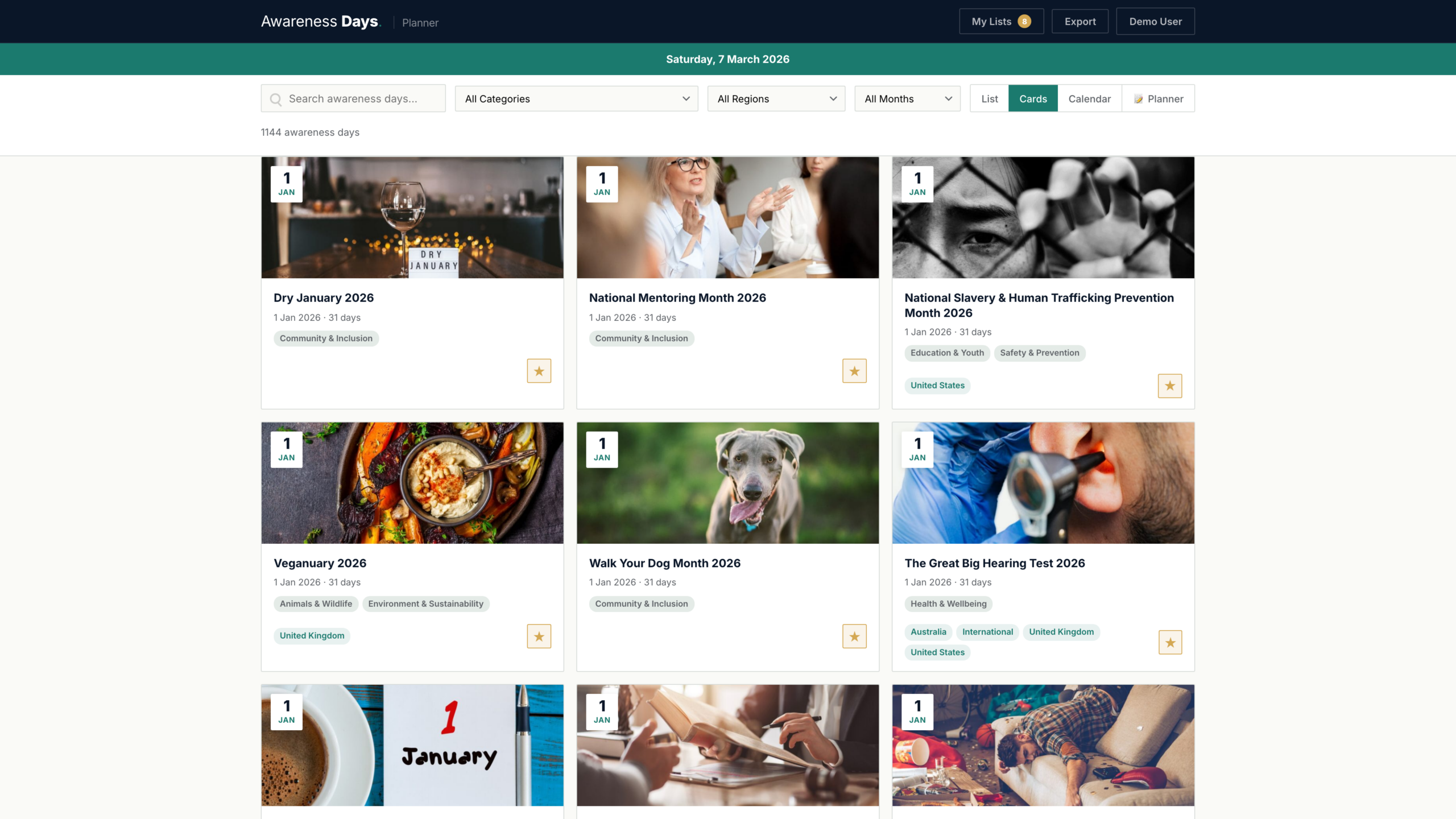
Awareness Planner is divided into four main areas:
Header bar
The dark header at the top contains the Awareness Days logo, your calendar button (with a count badge showing how many events you’ve saved), export and integrations buttons, and your account or upgrade link.
Today bar
A teal banner below the header shows you which awareness days are happening today, with quick links to view each one.
Toolbar
The toolbar gives you access to search, category/region/month filters, and view switching. You can browse events in four views:
- List view — a compact table with dates, titles, and categories
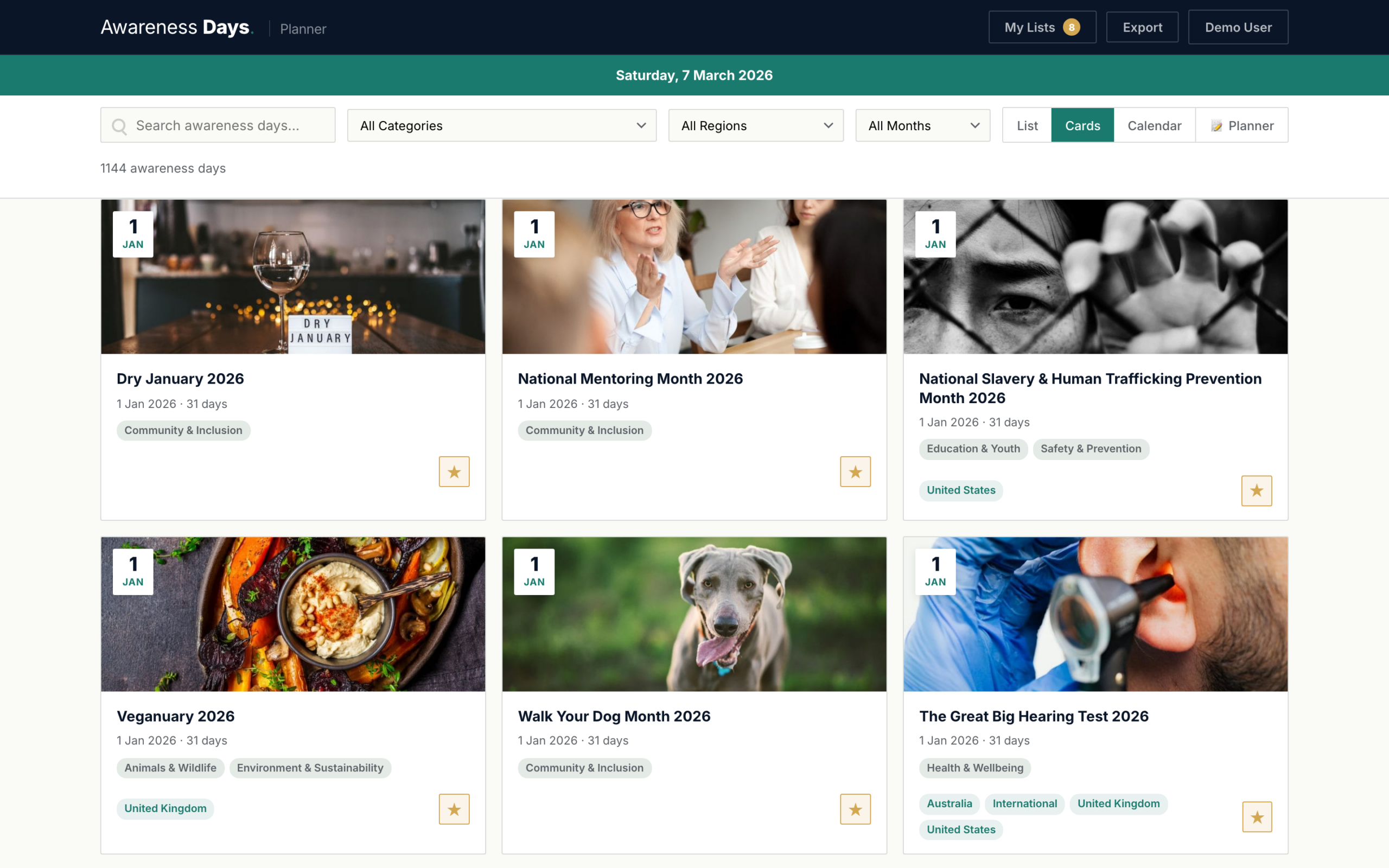
- Cards view — a visual grid with event images and descriptions
- Calendar view — a monthly grid showing events on their dates
- Planner view — your content calendar and pipeline (requires a free account)
Main content area
The main area displays events in your chosen view. Click any event to see its full details, add it to a calendar, or start planning content for it.
Your first 5 minutes
Here’s how to get value from Awareness Planner straight away:
- Open the planner. Go to awarenessdays.com/planner. No account needed to browse.
- Search or filter. Use the search bar to find events by keyword, or use the category and month dropdowns to narrow results. Try filtering by “Health & Wellbeing” or searching for “mental health”.
- Save events. Click the star icon on any event to add it to your default calendar. You can create multiple named calendars later.
- Switch views. Try the Calendar view to see events on a monthly grid, or switch to Cards for a more visual browse.
- Explore the planner. Click the “Planner” tab in the view switcher to open your content calendar. From here you can create content items linked to awareness days and track them through your workflow.
Creating an account
To save events, use the content planner, and sync your data across devices, you’ll need a free account.
- Click “Log In” in the top-right corner of the planner, or click the “Upgrade to Pro” button.
- Choose “Create Account” on the login form. Enter your email address and choose a password.
- Verify your email. Check your inbox for a confirmation link and click it to activate your account.
- Return to the planner. You’ll be automatically logged in. Your name will appear in the header, and any events you’ve saved locally will sync to your account.
Choosing a plan
Awareness Planner offers three tiers. All plans are billed annually — awareness day planning is inherently annual, so this gives you the best value.
| Feature | Free | Planner £29.99/yr | Planner Pro £49.99/yr |
|---|---|---|---|
| Browse & search 1,000+ events | ✓ | ✓ | ✓ |
| Saved events | 10 | 25 items, 3 lists | Unlimited |
| Content planner & pipeline | 5 items | ✓ | ✓ |
| AI content ideation | — | — | ✓ |
| Export (CSV, ICS, JSON) | — | — | ✓ |
| iCal & RSS feeds | — | — | ✓ |
| Webhooks & Slack | — | — | Pro & Team |
| Team seats | — | — | Up to 5 |
You can upgrade at any time from the planner. All paid plans come with a 30-day money-back guarantee.
See Plans & pricing for a full comparison.
Next steps
Now that you’re set up, here’s where to go next:
- Browsing & discovering events — master search, filters, and the four view modes
- Creating & managing calendars — organise events into named, colour-coded lists
- Content planner & pipeline — build your content calendar and track work through your pipeline
- Exporting your calendar — get your events into Google Calendar, Outlook, and more